
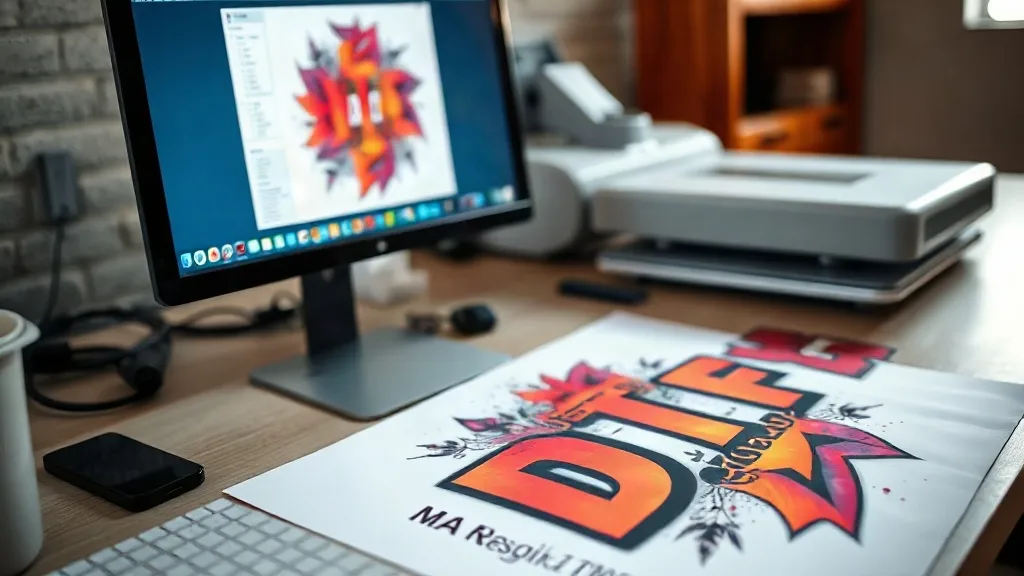
You've invested in a quality heat press, chosen the right fabric, and mastered the application process. Yet sometimes, the finished garment still looks off: colors are muted, edges crack after a few washes, or the design feels stiff and plastic-like. The culprit often isn't the dtf transfer itself but the design file you started with. In this guide, we'll uncover the five most common design mistakes that sabotage dtf transfers and show you exactly how to fix them before you print.
Mistake 1: Using Low-Resolution or Improperly Scaled Artwork
DTF printing demands high-resolution images. A file that looks crisp on your screen can turn into a pixelated mess when printed at full size. The minimum recommended resolution is 300 DPI at the final print dimensions. If you're scaling up a smaller image, the resolution drops proportionally. For example, a 2-inch wide image at 300 DPI has only 600 pixels across; blow it up to 10 inches, and you're left with 60 DPI, which will look blurry and jagged.
Always design at the actual size you intend to print. If you must enlarge an existing image, use vector graphics or AI upscaling tools, and then inspect the file at 100% zoom to check for soft edges or artifacts. Remember that dtf transfers reproduce fine details well, but they can't create detail that isn't there.
Mistake 2: Ignoring Color Mode and Color Profiles
Have you ever printed a vibrant red design only to get a dull orange? That's often because the file was created in RGB mode, but DTF printers use CMYK inks. RGB has a wider gamut, so colors can shift when converted. To avoid surprises, convert your design to CMYK using the printer's recommended ICC profile before exporting. Also, be mindful of spot colors: what looks like a solid Pantone shade may not have a direct CMYK equivalent.
Another common pitfall is forgetting to embed the color profile or working in a generic CMYK space. Always ask your transfer supplier for their preferred color settings, and soft-proof your design in Adobe Photoshop or Illustrator to see how it will look in print.
Mistake 3: Neglecting the White Ink Layer
DTF transfers rely on a white ink base to make colors pop on dark fabrics. If your design file doesn't include a proper white layer, the printer will either skip it or generate one automatically, which can lead to halos, misregistration, or weak adhesion. When preparing your artwork, create a separate spot color channel named "White" or "White_Ink" and fill the areas where you want white ink. This is especially important for designs with fine lines or text on black shirts.
Also, avoid using pure white in your color layer if you want the white ink to show through; instead, use a light gray or a specific spot color to indicate white areas. Your transfer provider can guide you on their preferred file setup.
Mistake 4: Forgetting About Fabric and Garment Color
Design choices that work on a white cotton tee may fail on a dark polyester blend. For instance, dark colors on dark fabrics can lack contrast, while fine details may get lost on textured materials. Always consider the garment color when selecting your palette. If you're printing on a dark shirt, incorporate a white outline or a contrasting background to make the design stand out.
Additionally, some fabrics like nylon or treated polyester require lower pressing temperatures, which can affect how the transfer adheres. Test your design on a sample garment before committing to a full run. And if you're sourcing dtf transfers near me, ask for fabric-specific recommendations.
Mistake 5: Overlooking Size and Placement
A design that looks great on screen might be too large or small for the intended garment. Standard print sizes vary: a left chest logo is typically 3 to 4 inches wide, while a full back print can be 12 to 14 inches. If your design is too detailed for a small size, it may become unreadable. Conversely, a simple graphic scaled up too much can look pixelated.
Before printing, create a mockup with the design placed on a garment template to visualize proportions. Pay attention to seam allowances and how the print will wrap around the body. For example, a design that extends to the side seams may distort when worn. Always leave a margin of at least 0.5 inches from seams and hems.
Frequently Asked Questions
What file format is best for DTF transfers?
PNG and TIFF are preferred because they support transparency and high resolution without compression artifacts. PDF and AI files are also acceptable if they include embedded color profiles and a separate white layer. Avoid JPEGs for anything with text or sharp edges.
How can I check if my design has enough resolution for DTF printing?
Open your file at 100% zoom in an image editor and check the pixel dimensions. Divide the pixel width by the desired print width in inches; the result should be at least 300. For example, a 3000-pixel-wide image can print up to 10 inches wide at 300 DPI.
Do I need to create a white underbase for DTF transfers?
Yes, for any design that will be printed on dark or colored fabrics, a white ink layer is essential to ensure vibrant colors. Your design file should include a dedicated spot color channel for white, or you can rely on your transfer supplier's software to generate it, but manual control yields better results.
Why do my colors look different after printing?
This is usually due to RGB-to-CMYK conversion or incorrect color profiles. Always convert your design to CMYK using the printer's ICC profile and soft-proof before printing. Also, remember that monitors display colors differently, so a physical proof is the best way to verify.
Can I use the same design for different fabric types?
Not always. Fabric composition affects ink adhesion and appearance. For example, designs on polyester may require lower temperatures, and colors can appear slightly different. It's best to test on a sample of each fabric type and adjust your design or pressing settings accordingly.
By avoiding these design mistakes, you'll save time, money, and frustration. Remember that a great dtf transfer starts with a well-prepared file. If you're ever unsure, consult your transfer provider; they can often catch issues before they become costly problems.